Spaces and templates
A space is a complete set-up of the page: its links, note, cities, wallpapers and settings. You might keep one for work and one for home, or a reading page next to your usual one. Ten spaces at most per browser.
It is neither an account nor a lock: anyone using the same browser profile can see and open every space. To keep two people apart, use two browser profiles or two system accounts.
Create a space
Section titled “Create a space”Settings → Spaces and backup → Manage spaces, or, once there are two spaces, the Space button in the action bar, then Manage spaces.
- Under New space, enter a name (up to 40 characters, different from the others).
- Tick Start from a copy of this space to reuse the current set-up. Otherwise the space starts empty, with no links or notes.
- Create and open: the page reloads on the new space.
A copy is independent of the original from the moment it is made. Personal images are not copied: each space has its own My images library.
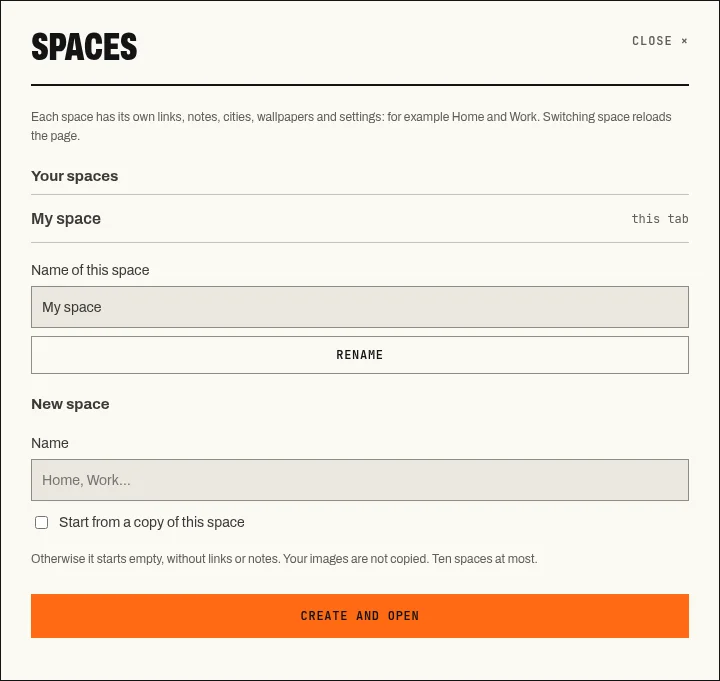
The Spaces window: rename the open space, create another one.
Start from a template
Section titled “Start from a template”Settings → Spaces and backup → Space templates creates a new, pre-configured space without touching the current one:
| Template | Settings |
|---|---|
| Essential | Clock, date and search; no note, no greeting |
| Work | Link bar at the top, note on the right, focus timer |
| Reading | Link bar at the top, no seconds, panels 80 % opaque |
You can change the suggested name before Create this space. After that, these are ordinary settings.
Switch spaces
Section titled “Switch spaces”The Space button lists your spaces: a click opens the one you choose, and the page reloads. Each tab keeps its own space; a new tab opens on the last space chosen.
Name of this space and Rename, in the Spaces window, change the name of the open space.
Delete this space, in the same window, erases the open space from this device after confirmation: links, note, settings, personal images and recovery points. The page then reopens the main space. Export first anything you want to keep. A copy synced with a code is not touched: it stays available to your other devices. The main space cannot be deleted; it can be reset.
What belongs to each space
Section titled “What belongs to each space”Per space: links, the note and its versions, cities, wallpapers, favourites and the My images library, quotes, home and appearance settings, the timer and today’s total, recovery points, sync code.
Shared across the browser: the list of spaces, the language, the action bar state, and the permissions granted to the website or the extension, such as notifications.
Get a space on another device
Section titled “Get a space on another device”The list of spaces is not transferred. On the other device, create the space, then import its JSON export or enter its sync code. Repeat for each space.