Export, import and restore
Three tools, three purposes: the JSON export is a copy outside the browser, the only one that survives clearing the site’s data; recovery points undo a recent mistake; sync copies changes from one device to another, deletions included. Sync is therefore not a backup.
Export a space
Section titled “Export a space”Settings → Spaces and backup → Back up and restore → Export downloads hostux-page.json, which holds the open space and nothing else.
You can rename the file (hostux-page-work.json): its name does not matter on import.
| Content | In the export |
|---|---|
| Home, appearance, wallpaper and timer settings | Yes |
| Links and groups | Yes |
| The note, tasks included | Yes |
| Weather cities | Yes |
| Your quotes, favourite quotes and wallpapers, hidden wallpapers | Yes |
| Your personal images | No |
| Sync code | No |
| Note versions, recovery points, running timer | No |
| Other spaces, language | No |
The file is readable JSON: it contains your note and the addresses of your links. Do not attach it as is to a request for help.
Import
Section titled “Import”Before importing into a browser that already has a set-up, open the right space, or create one.
- Settings → Spaces and backup → Import…
- Choose the file, or paste its content (250 KB at most), then Check the content. Nothing has changed yet.
- Tick the sections to bring in: Display settings and preferences, Links, Notes, Quotes and wallpapers, Weather cities.
- Apply the selected sections.
A ticked section replaces the space’s own; an unticked section is left alone. Nothing is merged: importing Links replaces the whole link list. To bring back the look of an old export without losing your current note, untick Notes.
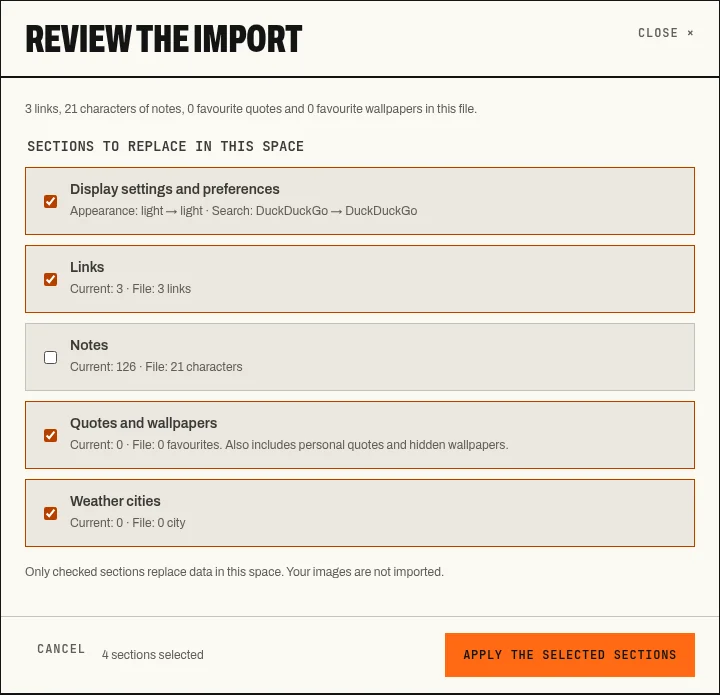
The import preview: only ticked sections are replaced.
An HTML bookmarks file is not imported here but from the link manager.
Recovery points
Section titled “Recovery points”Settings → Spaces and backup → Backup and recovery lists the space’s last six points, with their date, reason, number of links and note length.
The page creates one automatically before an import, before receiving synced settings, before a reset, and at most once every ten minutes while you edit the page. Create recovery point adds one on demand. A point identical to the previous one is not added, and the oldest give way when storage runs short.
Review and restore opens the same preview as an import: you choose the sections to bring back, or close it without changing anything.
Recovery points stay in the browser. Clearing the site’s data clears them too: they do not replace an export.
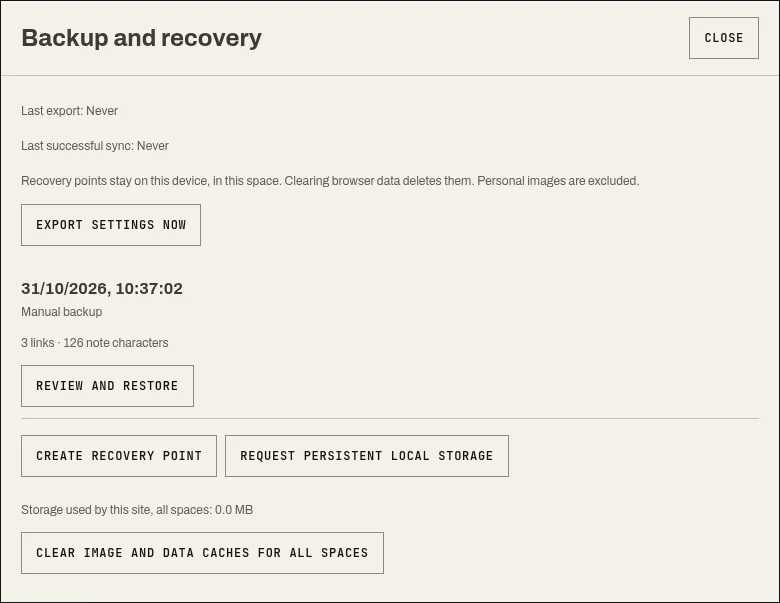
Backup and recovery: last export, last sync and recovery points.
The same window shows the date of the last export (which does not prove the file was kept), and offers Export settings now, Request persistent local storage and Clear image and data caches for all spaces (see Offline and storage).
Settings → Spaces and backup → Reset the settings → Reset puts the space’s settings back to their defaults, first name and getting started guide included, after confirmation. Links, the note, favourites and cities are kept, and a recovery point is created just before.
This has nothing to do with clearing the site’s data in the browser, which deletes every space, your personal images and the recovery points.