Links, groups and browser bookmarks
Each space has a single list of links, a hundred at most. It shows in the Links and notes window, in the home page link bar if you turn it on, and in the search suggestions.
Add a link
Section titled “Add a link”Links → Add a link, or drag a link from another page onto the home page. A link has:
- an address, HTTP or HTTPS; addresses with credentials (
user:password@) are refused; - a name, up to 60 characters;
- an optional icon: an emoji or two characters, instead of the site’s icon;
- an optional group. Pick an existing group or type a new name to create one.
Without an icon of your own, the page shows the site’s icon, fetched by the Hostux server from DuckDuckGo, or else the initials of the name on a colour drawn from the site. The requests involved are described in Privacy.
The link bar
Section titled “The link bar”Settings → Home → Links → Link bar:
- At the top or At the bottom: the first twelve links, as icons;
- On the left or On the right: every link, as a list, on large screens;
- Hidden.
To get a link into the top or bottom bar, move it into the first twelve. In the Links window, Organise shows a ⠿ handle and ↑ ↓ arrows to move links and groups; Done leaves that mode. The manager described below also offers Move to the start. The home page note always takes the side opposite the side list.
Import from the browser
Section titled “Import from the browser”In the extension, Links → Import asks for the optional topSites and bookmarks permissions, then offers up to sixty links: your twelve most visited sites (unticked by default) and the links in the bookmarks toolbar, including those in its top-level folders. Deeper folders are skipped, and so are addresses you already have.
On the website as in the extension, Organise and transfer links also imports an HTML bookmarks file, the kind every browser exports. The file is limited to 1 MB and only its first hundred distinct addresses are read; split a bigger export. The folder holding a bookmark becomes its group. You then tick the bookmarks to add: existing links are left alone.
Organise several links
Section titled “Organise several links”At the top of the Links and notes window, Organise and transfer links opens the manager:
- Filter links narrows the list;
- Select displayed links ticks every result of the filter, Deselect all clears the selection;
- the selection can be moved to a group, to the start, to the end, or deleted;
- Review duplicates ticks the links whose address is the same as an earlier link’s;
- Export HTML bookmarks produces
hostux-page-favoris.html, ready to import into a browser.
Changing the filter does not untick links already selected: before a bulk action, start with Deselect all. After a deletion, a Cancel button undoes it for a few seconds.
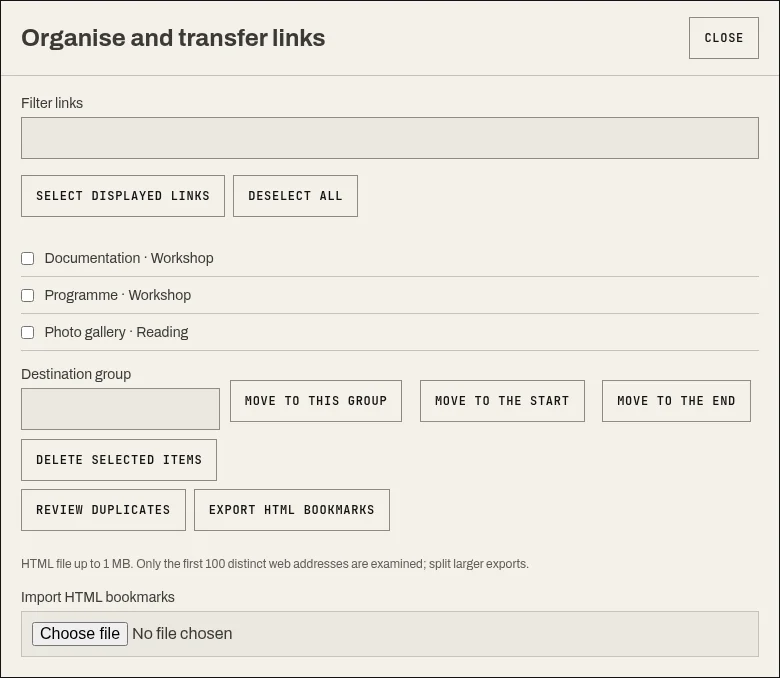
The link manager: filter, selection and bulk actions.
The HTML file only holds links. To carry a space’s whole configuration, use the JSON export.