Notes, tasks and Markdown preview
Each space has one note, in the Links and notes window (Notes tab) or on one side of the home page. Tasks are not a separate list: they are the checkbox lines of that note.
Writing
Section titled “Writing”The note saves as you type; below the field, “Saving…” then “Saved here” confirm it. If “Storage unavailable” appears, the note is not saved: copy your text somewhere else before closing the page.
The note is limited to 20,000 characters, tasks included.
In Settings → Home → Notes, Note on the home page puts it on the left or right of the home page, opposite the link list. On a narrow screen it goes back into the window.
A line - [ ] text is an open task, - [x] text a done one (* works instead of -). The rest of the note stays free text:
Thursday meeting
- [ ] Read the minutes- [x] Book the room
Question: who presents the budget?
Add a checkbox appends a - [ ] line to the note.
Links and notes → Local tasks lists the tasks: the checkbox ticks or unticks the matching line of the note, Move up and Move down swap two tasks, Delete removes the line (Cancel undoes it right after). The New task form adds a task of up to 160 characters, as long as the note holds fewer than a hundred.
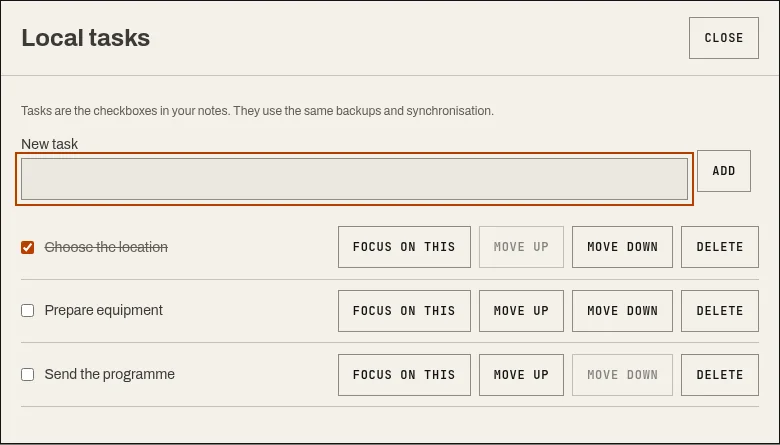
Local tasks: the note’s checkboxes, and “Focus on this” for the timer.
Focus on this copies the first 60 characters of the task into the timer field and shows the timer, without starting it. The task is not ticked when the session ends.
Markdown preview
Section titled “Markdown preview”The Markdown preview button, below the note, shows a formatted, read-only version. It understands:
| In the note | In the preview |
|---|---|
# Title, ## Title, ### Title |
Three heading levels |
**bold**, *italic* |
Bold, italic |
`code` |
Inline code |
- item |
Bullet list |
[text](https://example.org/) |
Link, HTTP or HTTPS only |
- [ ] task, - [x] task |
☐ task, ☑ task |
HTML is not interpreted and images are not loaded.
Previous versions
Section titled “Previous versions”Before each new burst of editing, and before an import or a received copy, the page keeps the current version. Previous versions shows the last eight, so you can restore one. They stay on the device and can be cleared from Storage on this device.
Two copies at once
Section titled “Two copies at once”If another version of the note arrives (from another tab or from sync) while you are typing, the page does not choose for you: Keep my input or Use the received version. The version you set aside joins the previous versions. While the conflict is open, sync for the space waits.